
help
1
A Singapore Government Agency Website
Back to home
Updated by HELP
Topic Management: How to add, rename, reorder, and assign topics & subtopics
AskGov has introduced a new Topic Management feature to give you full control over how your help centre is organised.
Previously, changes to topic names and ordering had to be done through the AskGov team. You can now edit and reorder your topics directly from the AskGov Studio
Understanding the structure:
Topic: A top-level category that groups related articles together (e.g. "Admin studio")
Subtopic: A child category nested under a parent topic (e.g. "Team Management" under "Admin studio")
Note: You must be a Site Owner or Editor to manage topics. If you have not been added to your agency's admin studio yet, please refer to the Team Management article.
How to manage your topics:
1. Open the Topic Management window
You can open the Topic Management window from two places in your Admin Studio:
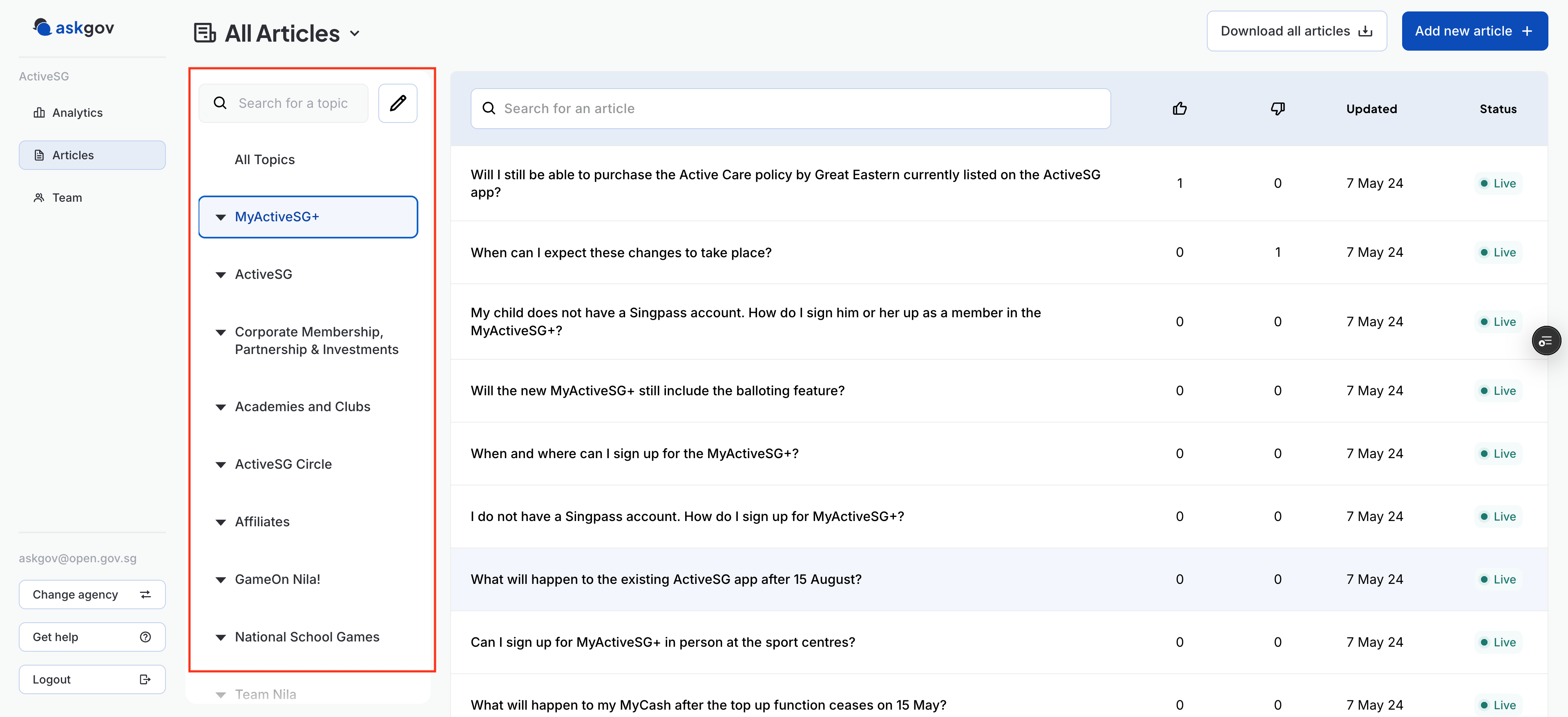
From the Articles page: Click the pencil (edit) icon next to the "Search for a topic" field on the left-hand panel. Use this when you want to organise your topics without editing a specific article.
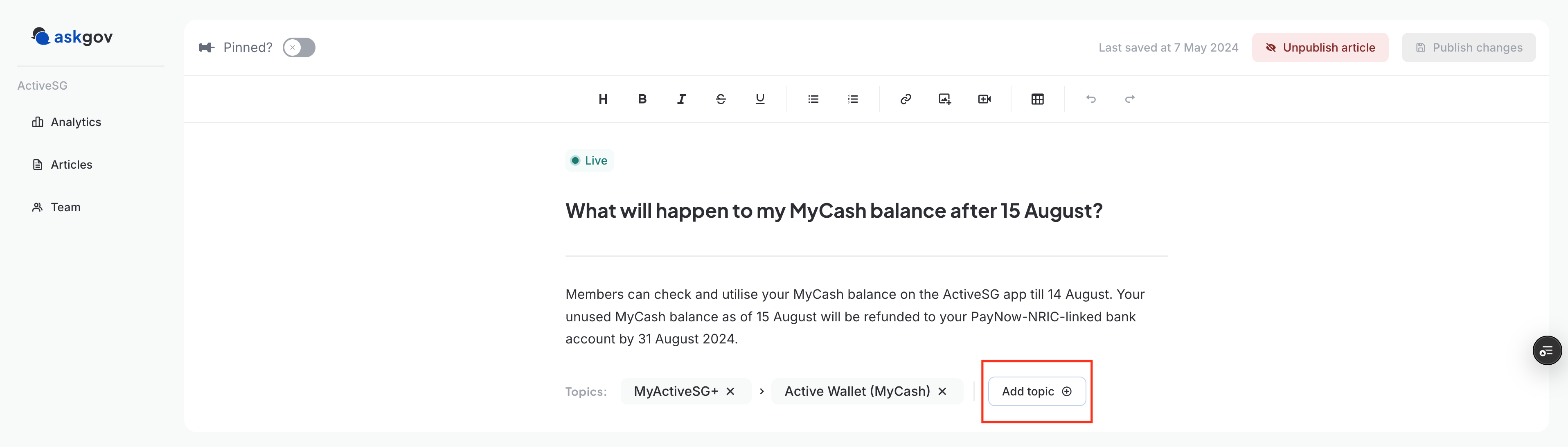
From the article editor (the page that opens when you click into an existing article or press "Add new article"): Click the the "Add topic" button at the bottom of the editor inside any article. Use this when you want to manage topics and assign them to the article you are working on at the same time.
2. Create a new topic
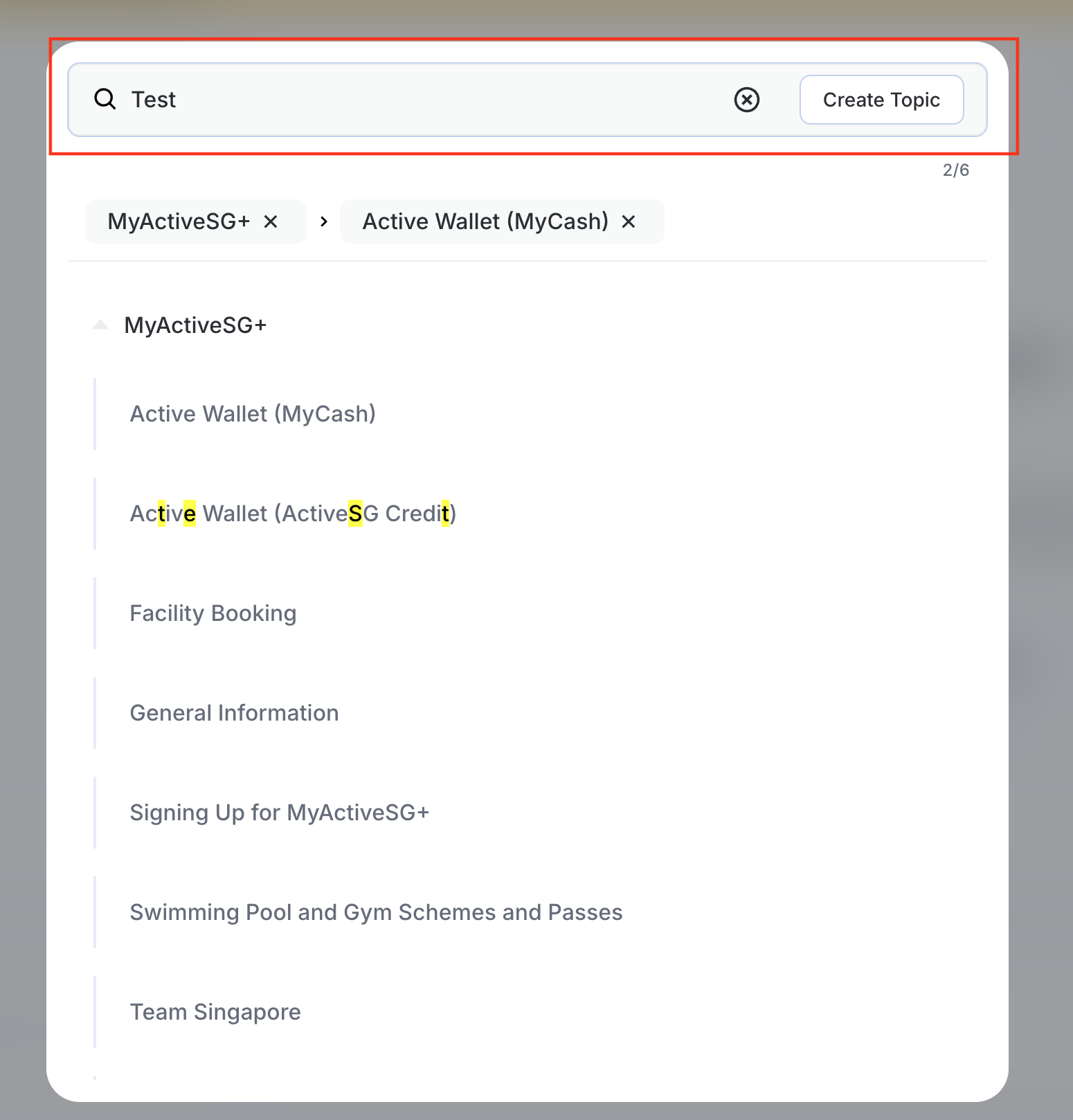
Enter a name for your new topic and confirm by pressing Create Topic. The topic is saved straight away, even if you do not end up saving the article you have open.
3. Create a new subtopic
Find the parent topic you want to nest under, then press "Create subtopic" next to it. Enter a name and confirm. If the parent topic was collapsed, it will expand automatically to show your new subtopic at the top of the list.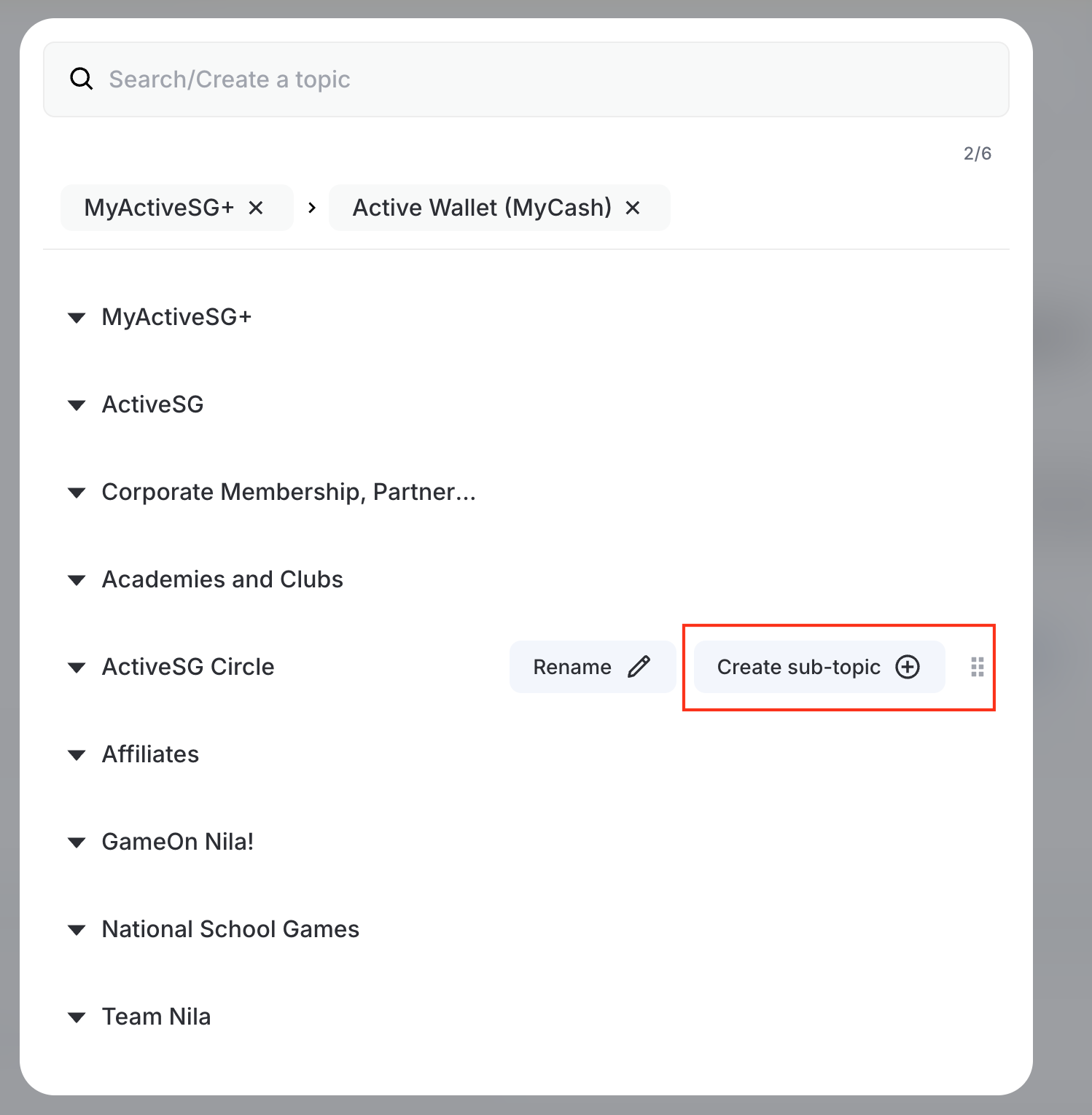
4. Rename a topic or subtopic
Hover over the topic or subtopic you want to rename, then select the rename option. Edit the name and confirm. The new name is applied immediately wherever the topic appears, including the tags at the bottom of the editor and on the public help centre.
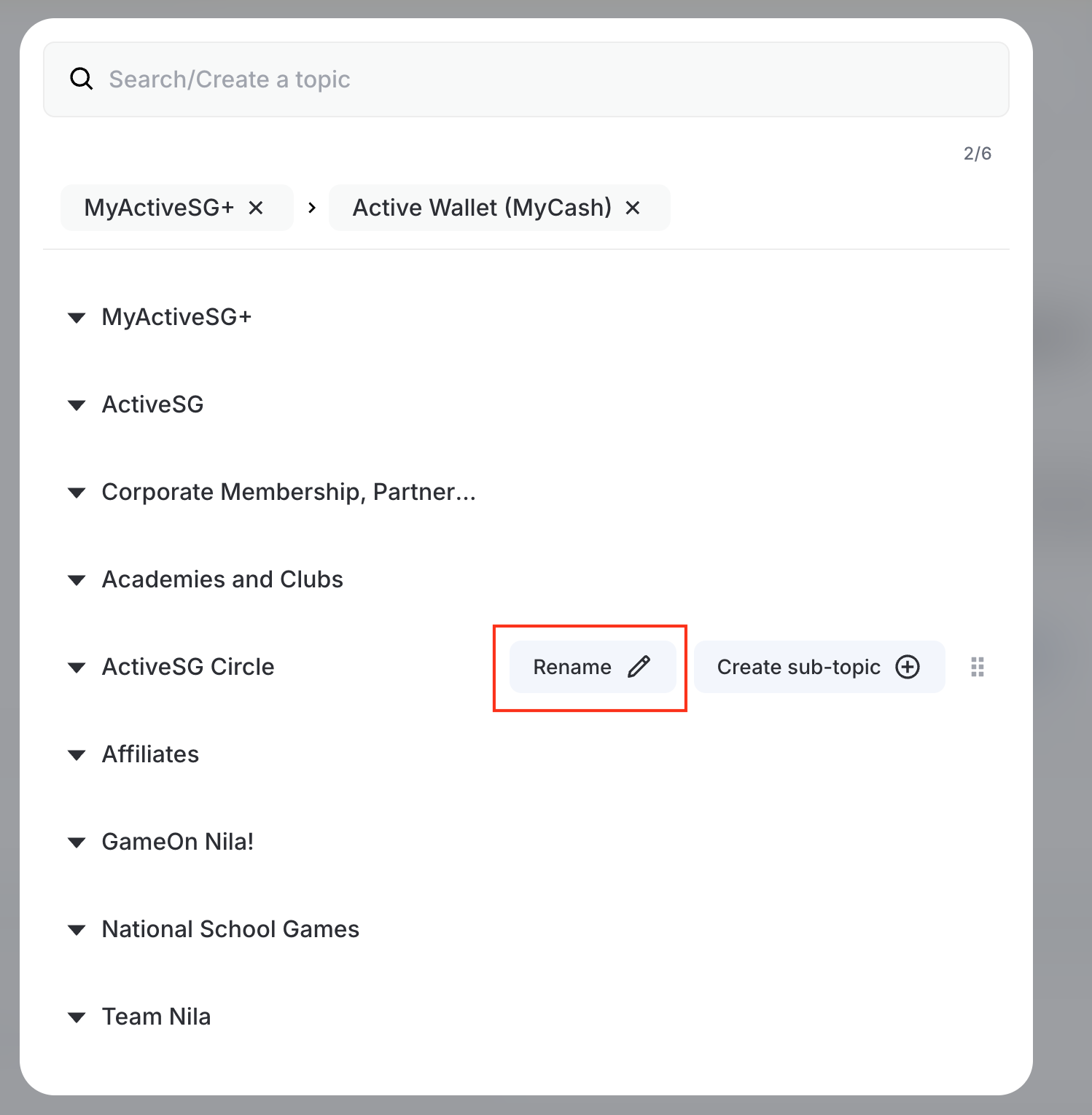
5. Reorder topics or subtopics
Drag a topic up or down to change its position in the list. To reorder subtopics, expand the parent topic and drag subtopics within it. The new order is reflected on your public help centre right away.
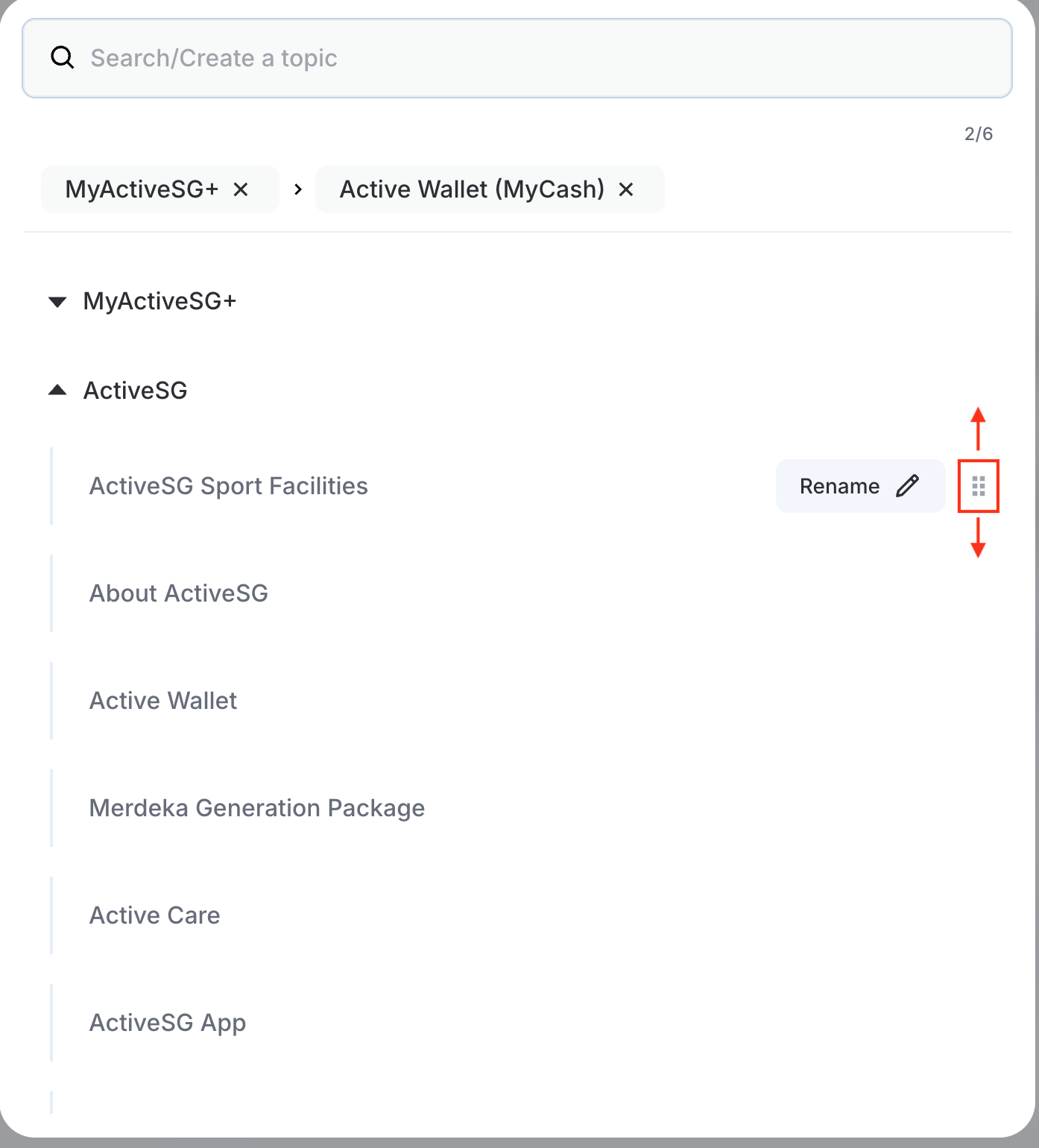
Note: Subtopics can only be reordered within their own parent. You cannot drag a subtopic to sit under a different parent topic.
6. Assign or remove topics from an article
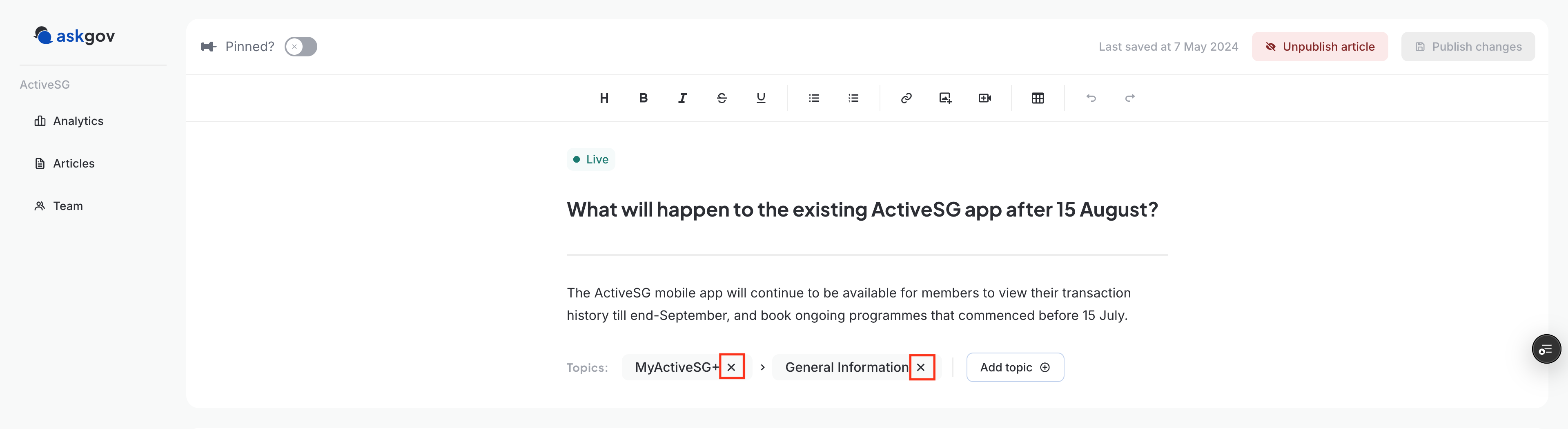
In the window, click the topics or subtopics you want to attach to the article you are editing. To remove a topic, click it again to deselect. The selected tags at the top of the window update as you go.
Close the window and the tags at the bottom of the editor will reflect your selection. Remember to save the article for the changes to take effect.
A few things to keep in mind:
Topic and subtopic changes (create, rename, reorder) save immediately. You do not need to save the article for them to persist.
Clicking or unclicking topics on an article is only saved when you save the article itself.
If you rename a topic that is already attached to articles, the new name is applied everywhere automatically.
Still have further questions about this change?
Please reach out to the team at https://go.gov.sg/askgovfeedback.
Related questions
Need more help?
Describe your issues to us.