
help
2
A Singapore Government Agency Website
Back to home
Updated by HELP
Team Management: How to add/remove site owners & editors
AskGov has introduced a new feature to allow you to organise and manage team access more effectively.
Previously, changes to admin accounts had to be made by emailing the AskGov team. Now, agencies can manage their admin email accounts directly via the AskGov studio!
Anyone with Site Owner access will have the ability to view, add, and remove other admin users independently.
Understanding Roles:
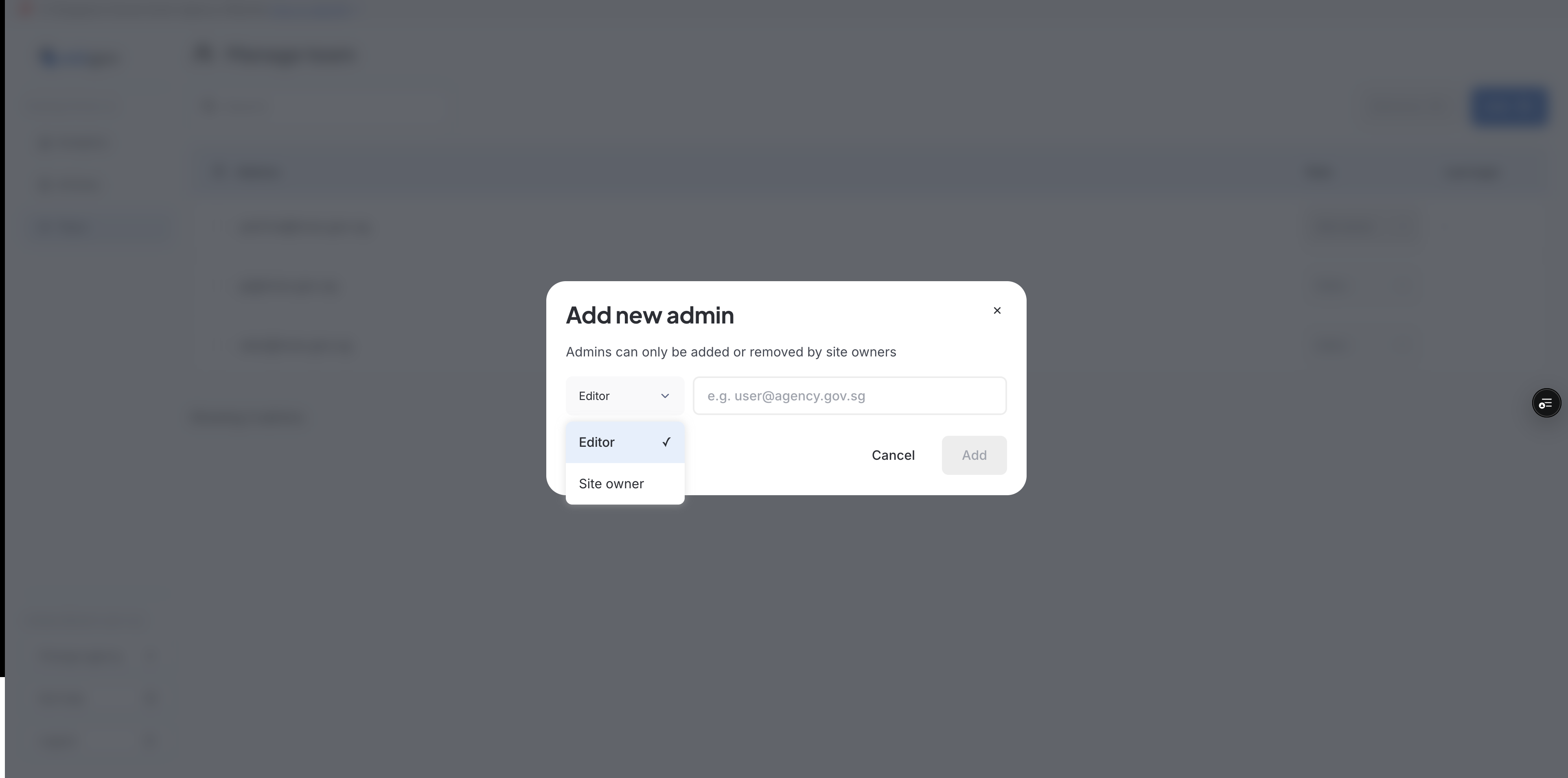
Site Owner: Has full access to manage FAQs and the exclusive permission to manage your team's access (add/remove users and assign roles)
Editor: Can create, edit, and publish FAQs, but cannot manage team access
Note: If you have not designated a Site Owner for your agency yet, please fill out this form first
How to manage your team:
1. Log in to your Admin Studio
Please log in with the following new admin studio URLs:
Production Admin Studio: Log in at https://studio.ask.gov.sg/login
Staging Admin Studio: Log in at https://studio-staging.ask.gov.sg/login
2. Navigate to the Team page
On the left-hand side, select Team. Note: Only Site Owners can edit this page and manage users.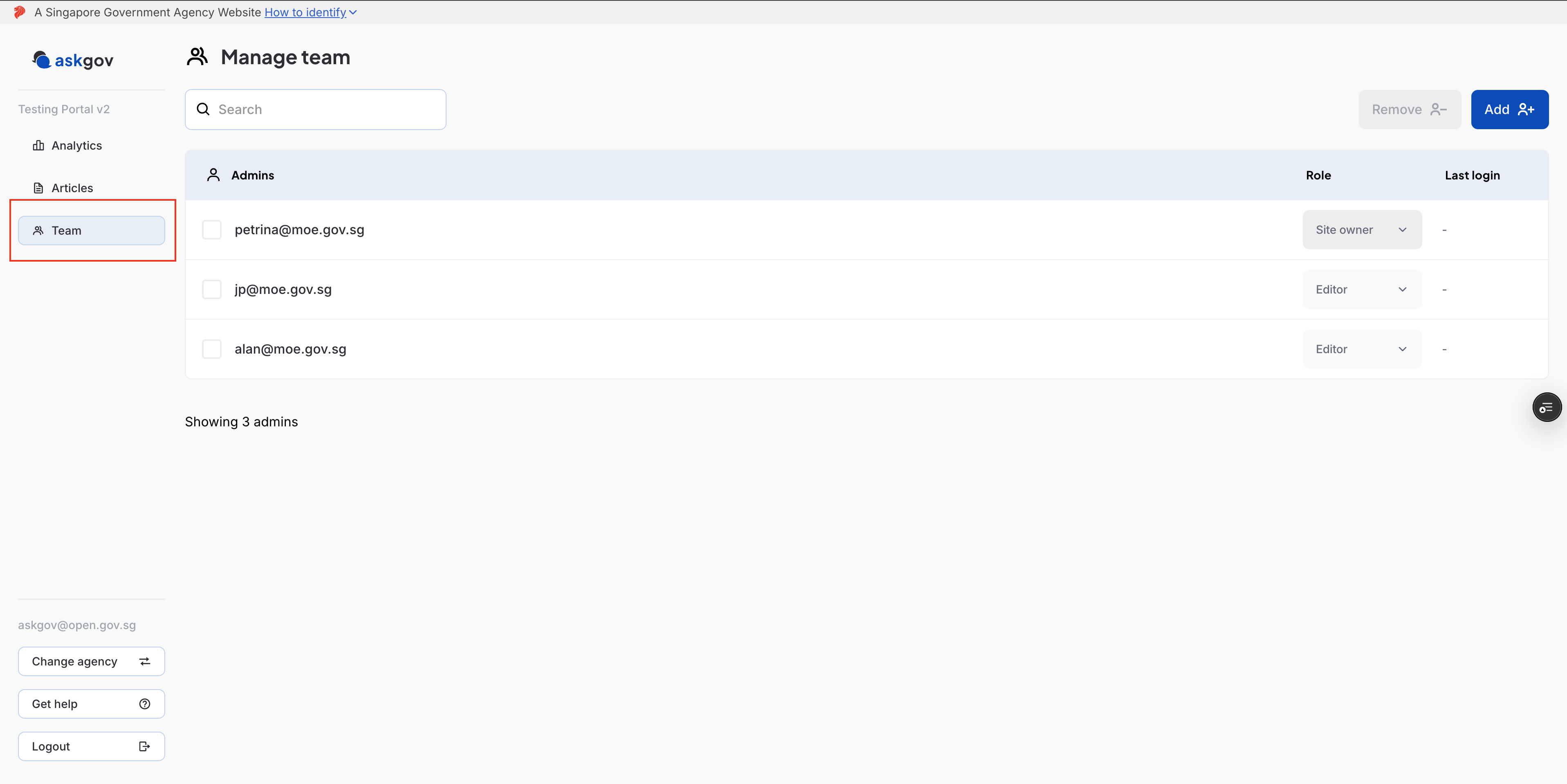
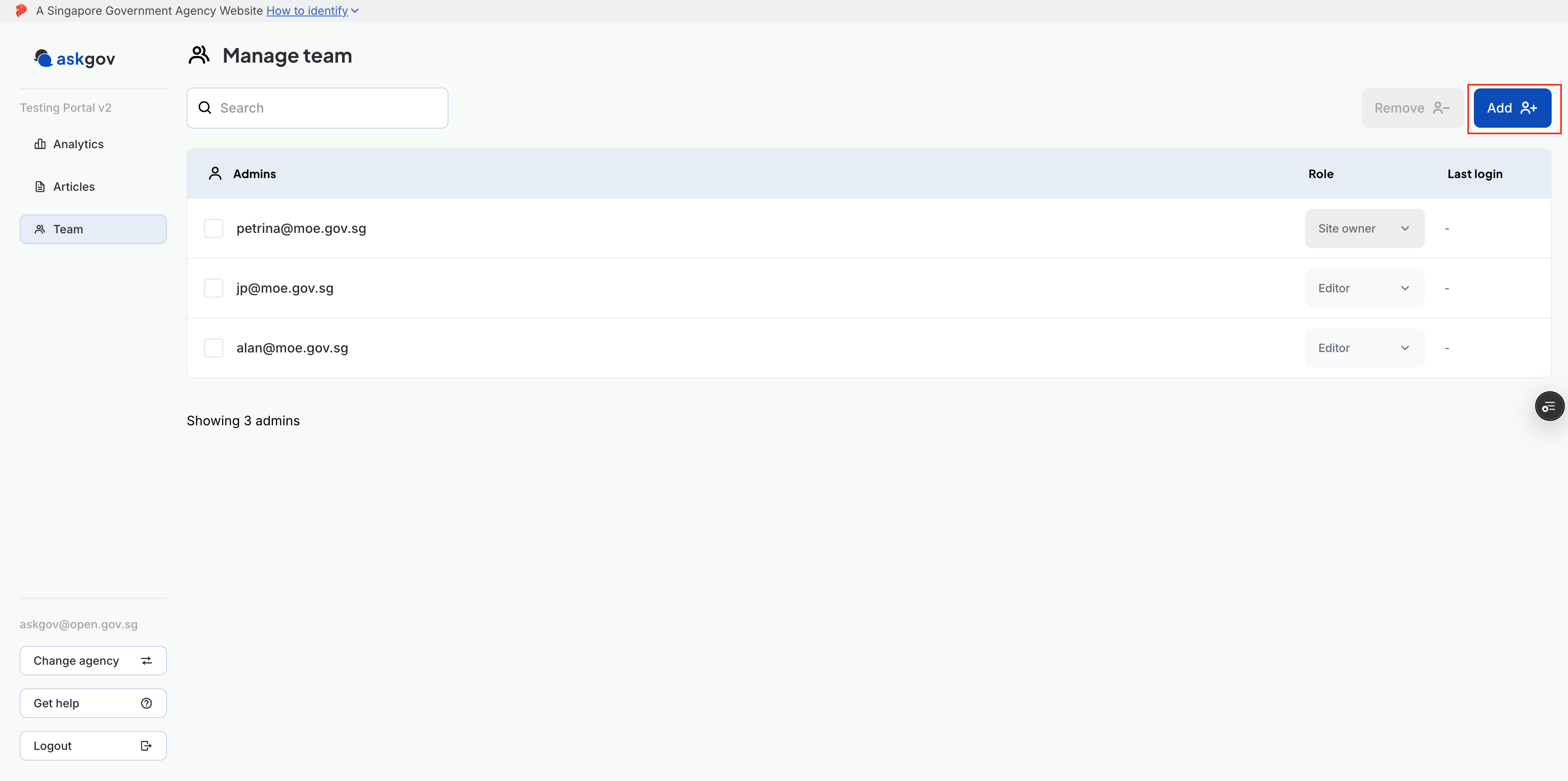
3. Add a new Editor or Site Owner
If you want to add a new Editor or Site Owner, press the "ADD" button in the top right-hand corner
Include the new user's email address and assign them their role and press "Add"
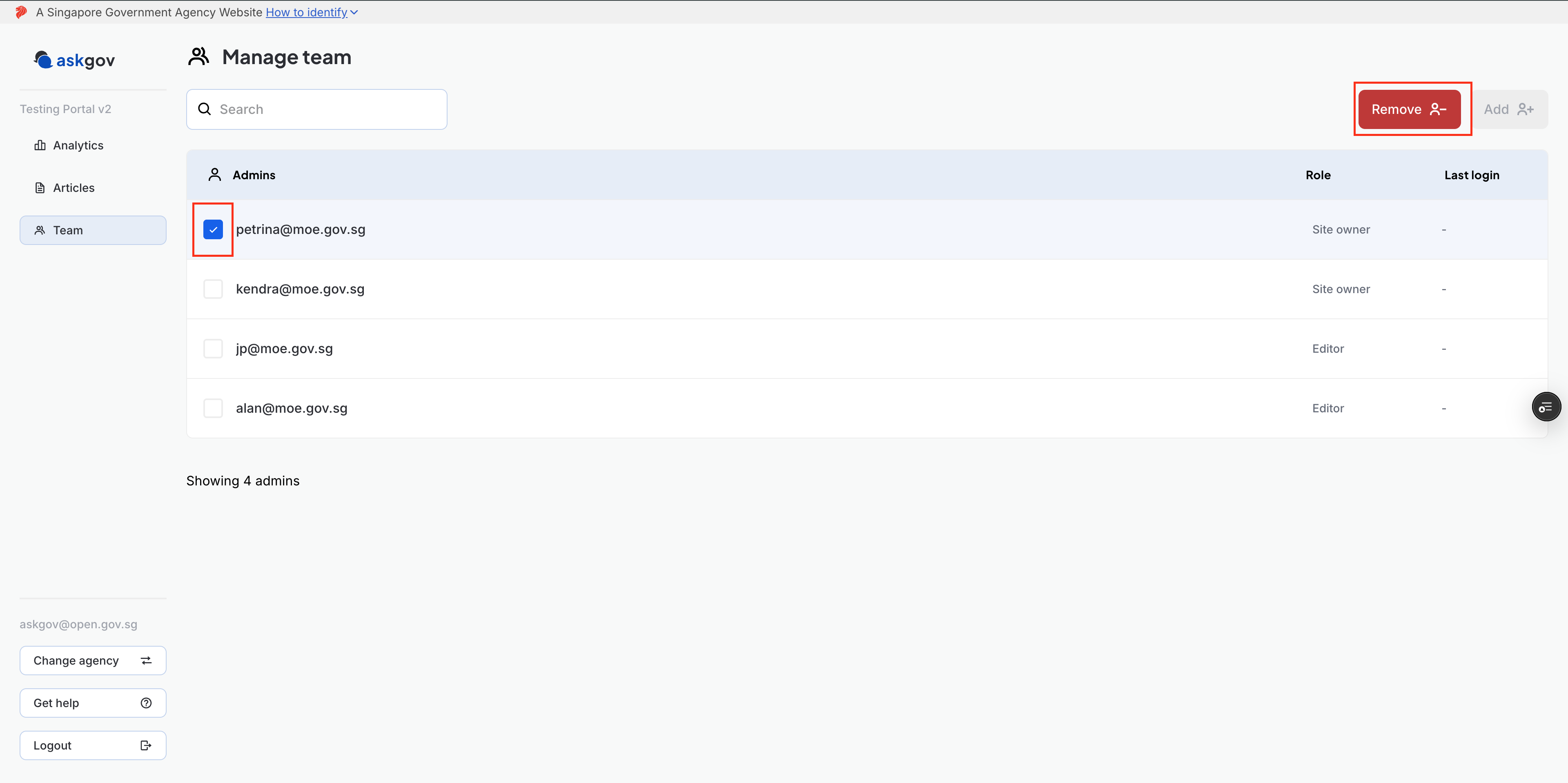
4. Remove a Site Owner or Editor
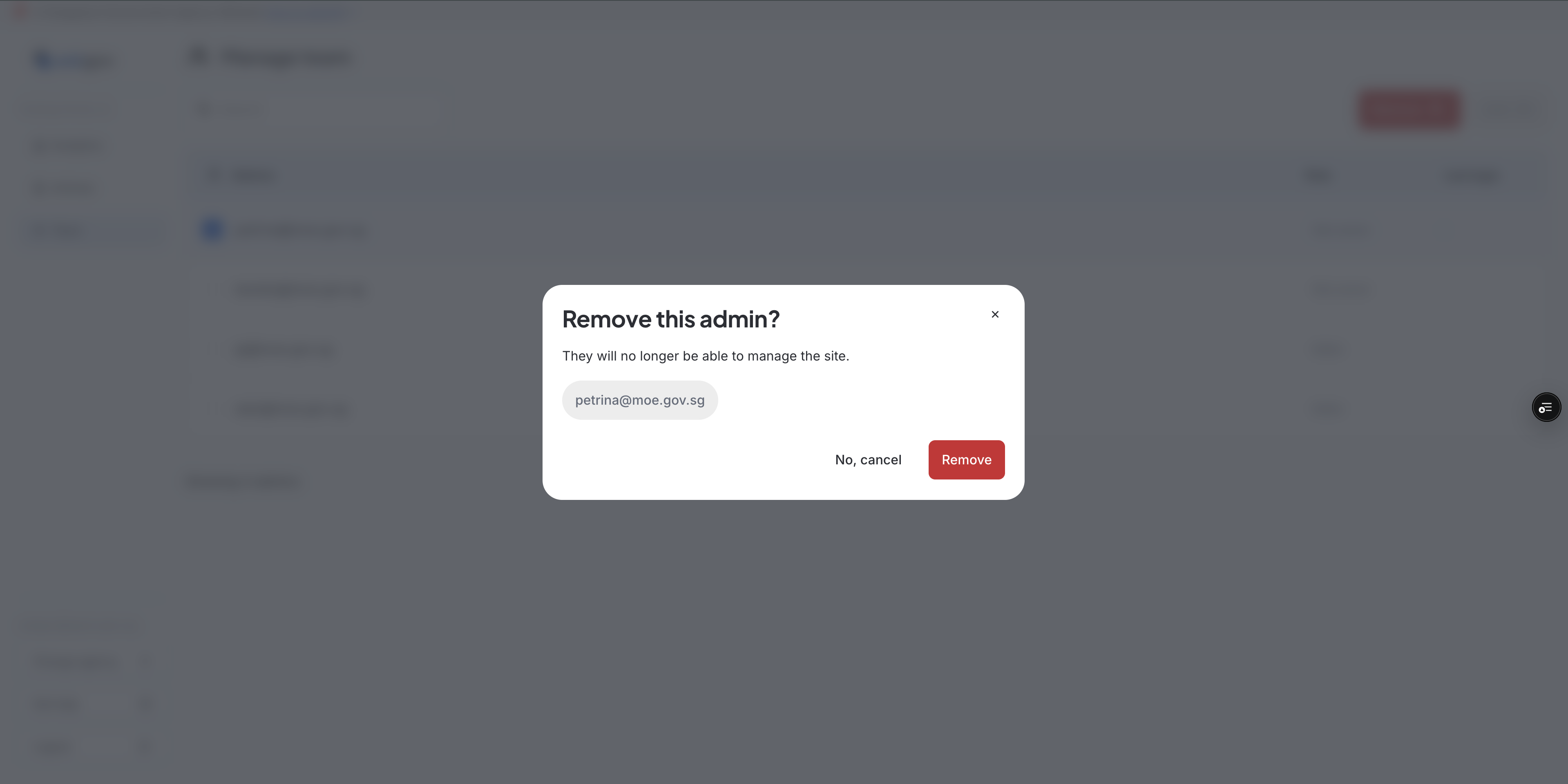
If you want to remove a Site Owner or Editor, select the user from the list, and then on the right-hand corner, select "Remove".
(Note: A Site Owner cannot remove themselves from the portal. If you need your own account removed, another Site Owner will have to do it for you. If you are currently the only Site Owner, please add and assign a new Site Owner first so they can remove your access).
Still have further questions about this change?
Please reach out to the team at https://go.gov.sg/askgovfeedback.
Topics:
Team & PermissionsRelated questions
Need more help?
Describe your issues to us.