
help
1
A Singapore Government Agency Website
Back to home
Updated by HELP
How to add and edit quick links?
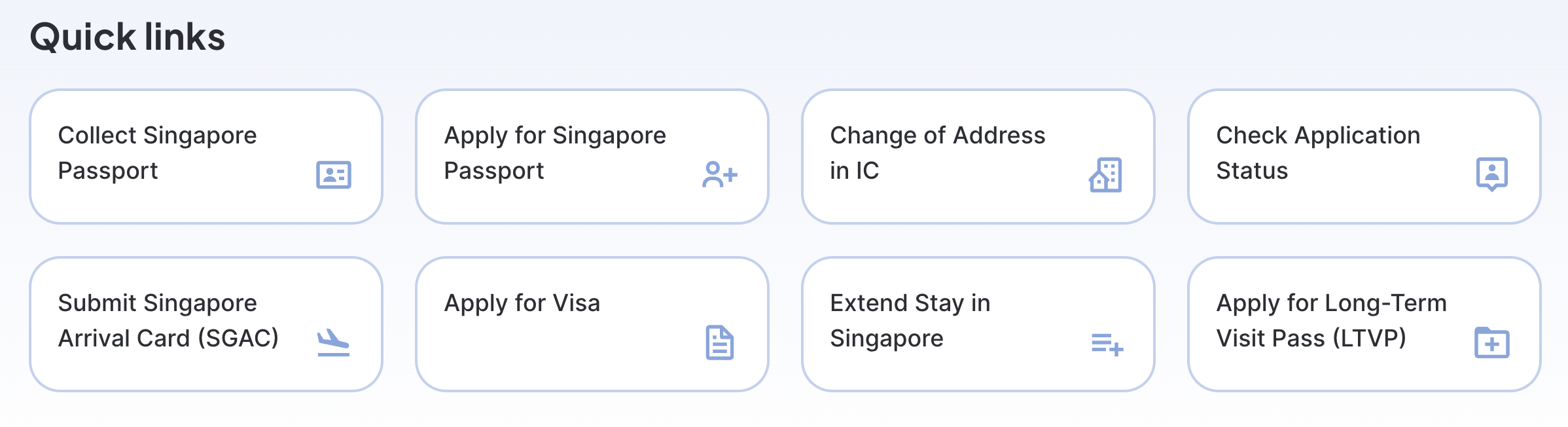
Quick links are convenient shortcuts on your AskGov homepage that address the most frequently asked questions. They appear as clickable cards, making it easy for visitors to quickly find the information they need. You can direct visitors to questions on your AskGov site, or to your own agency website. You can have up to 8.
Keep note that only site owners can make these changes.
See example:
 Step 1: Go to your Admin Studio and log in
Step 2: Go to Settings, Helpcenter Layout.
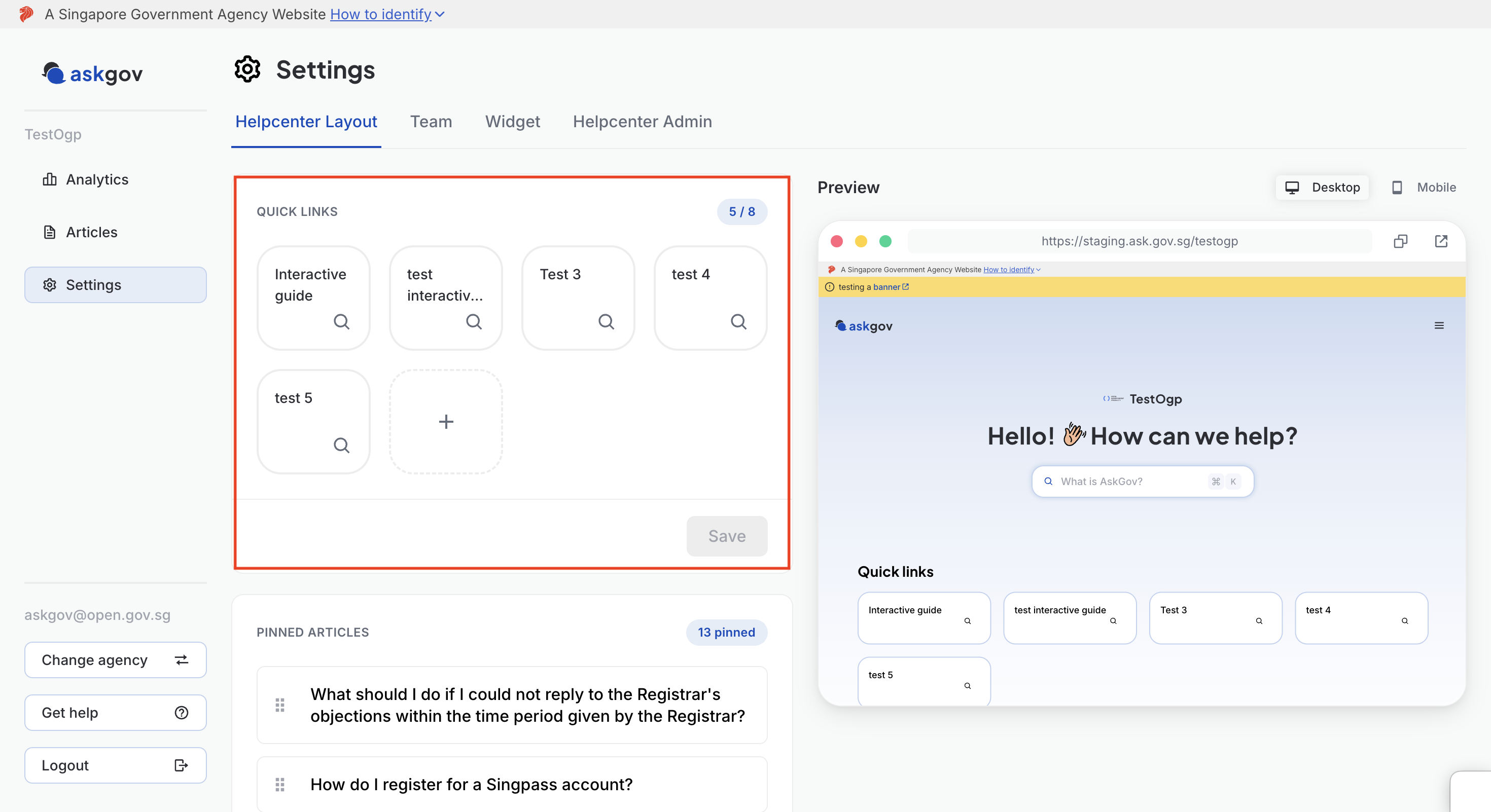
Step 3: Under Quick Links, click an existing card to edit it, or click the empty + card to add a new one (up to 8 total — the count in the top right, e.g. "5 / 8", tells you how many you have left).
Step 4: In the Edit quicklink window, give it a title.
Step 5: (Optional) Click the icon button to the left of the title field to open the icon picker, and select an icon to represent your quick link.
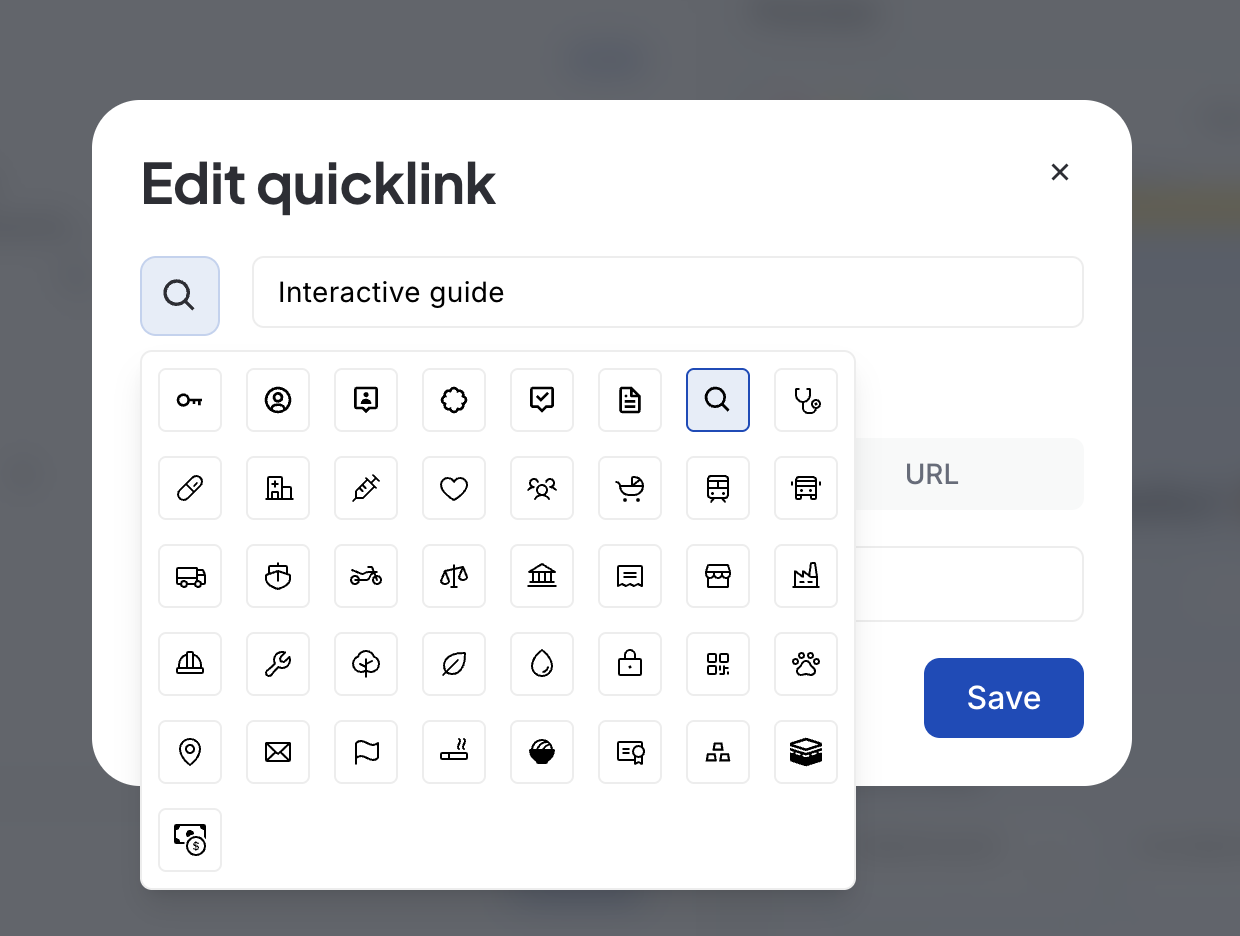
Step 6: Choose what it links to, using the tabs at the top of the window:
Question — search for and select an existing help article
Walkthrough — enter the ID of a walkthrough guide
URL — enter a custom URL, and choose whether it should open in a new tab
Step 7: Click Save. To remove a quick link entirely, open it and click Delete instead.
Step 8: To reorder your quick links, drag and drop a card to a new position in the Quick Links grid.
💡 Tip: The Preview panel on the right updates as you go, so you can see exactly how your quick links will look before saving.
Topics:
Site SettingsRelated questions
Need more help?
Describe your issues to us.