Can I bulk upload Internal Articles to help centres?
Updated by HELP
🚀 This feature is in Beta, please let us know if you would like access to it
Bulk upload lets you add multiple articles from a CSV file, including internal articles. Set each article’s visibility in the file, then choose its help centres after uploading and reviewing the content.
Step 1: Download the current template
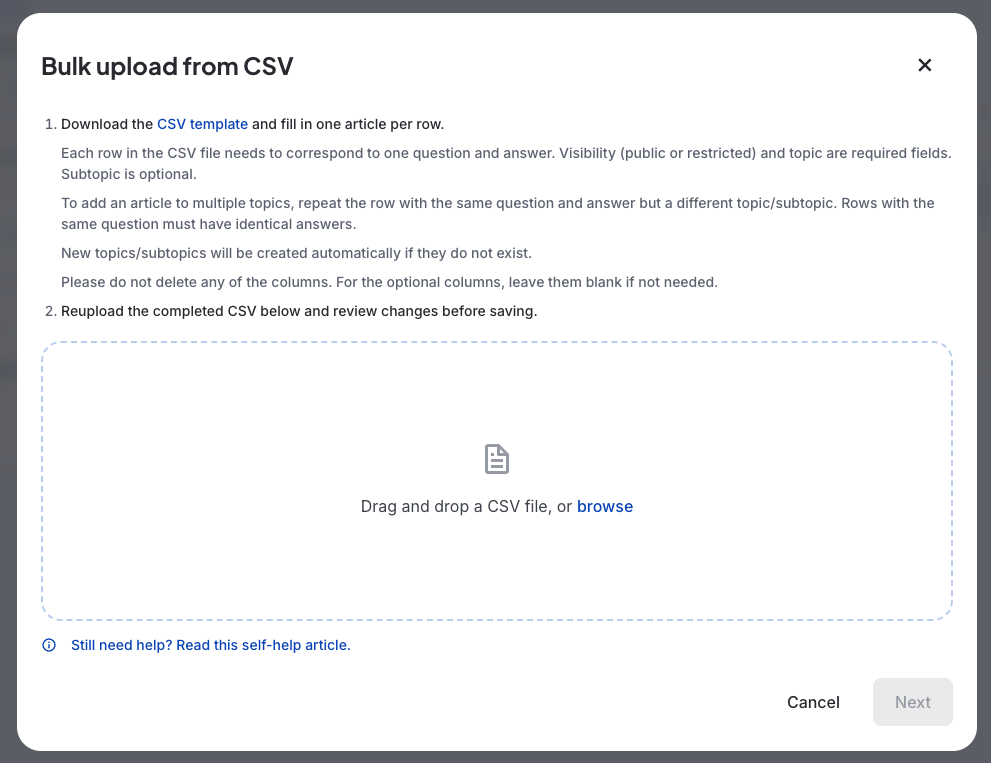
In All articles, open Add new article → Bulk upload from CSV.
You can also start from a help centre.
Download the CSV template in the upload window. You will see a new column, "Visibility". Articles can be either 'Public' or 'Restricted'.
question_title
answer_body
visibility
topic
subtopic
Step 2: Prepare the content
Enter each article’s title, answer, topic and visibility. Subtopic is optional.
Use public or restricted for visibility. For internal-only content, choose restricted.
To assign one article to multiple topics, repeat the question and identical answer with a different topic or subtopic.
New topics and subtopics are created during import if needed.
Step 3: Upload and review
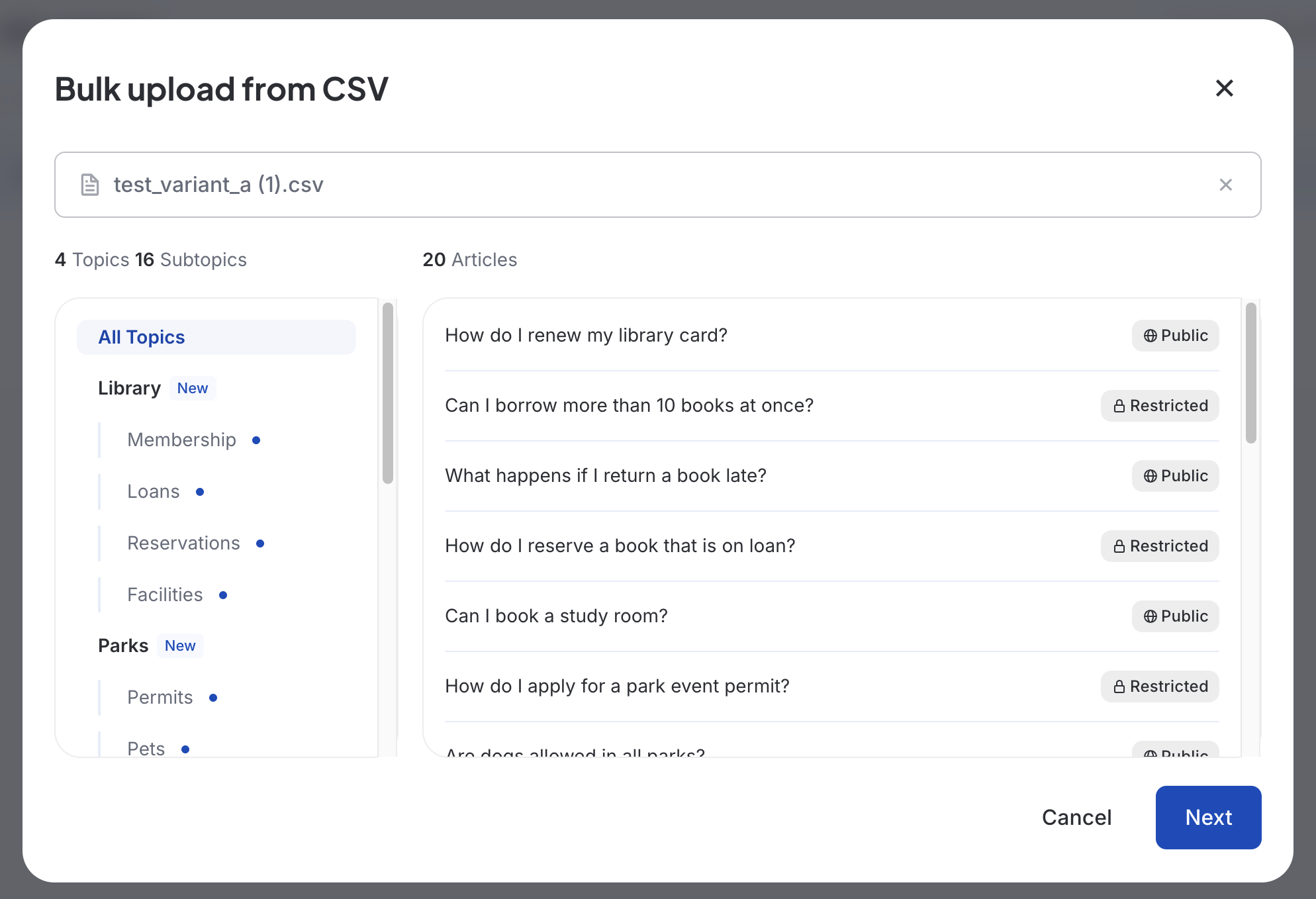
Upload the CSV, then check the article content, visibility labels and topic structure.
Correct any errors reported before continuing
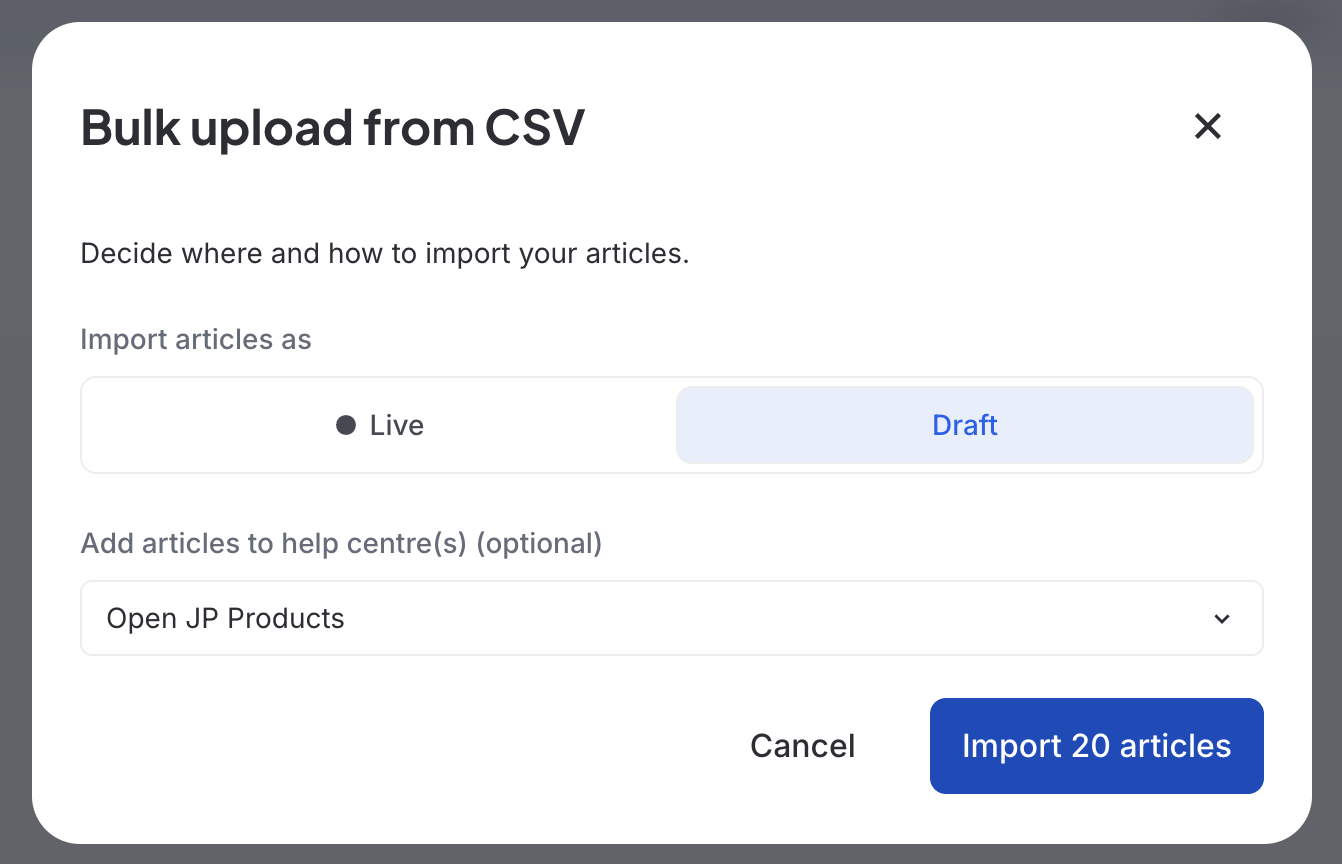
Step 4: Choose article status and help centre(s) to import it to
Article status
Draft is selected by default. Use it to review content before publishing.
Choose Live only when the articles are ready for readers.
Review your choices and select Import.
After completion, check the imported articles’ content, visibility, status and centre assignments.
Live status does not override access rules or make unassigned articles appear in a help centre.
Help centre(s)
With none selected, the articles are imported into the library without centre assignments.
Restricted articles can only go into restricted centres
For mixed-visibility files, review the warning explaining which articles will be added to each selected centre.