🚀 This feature is in Beta, please let us know if you would like access to it
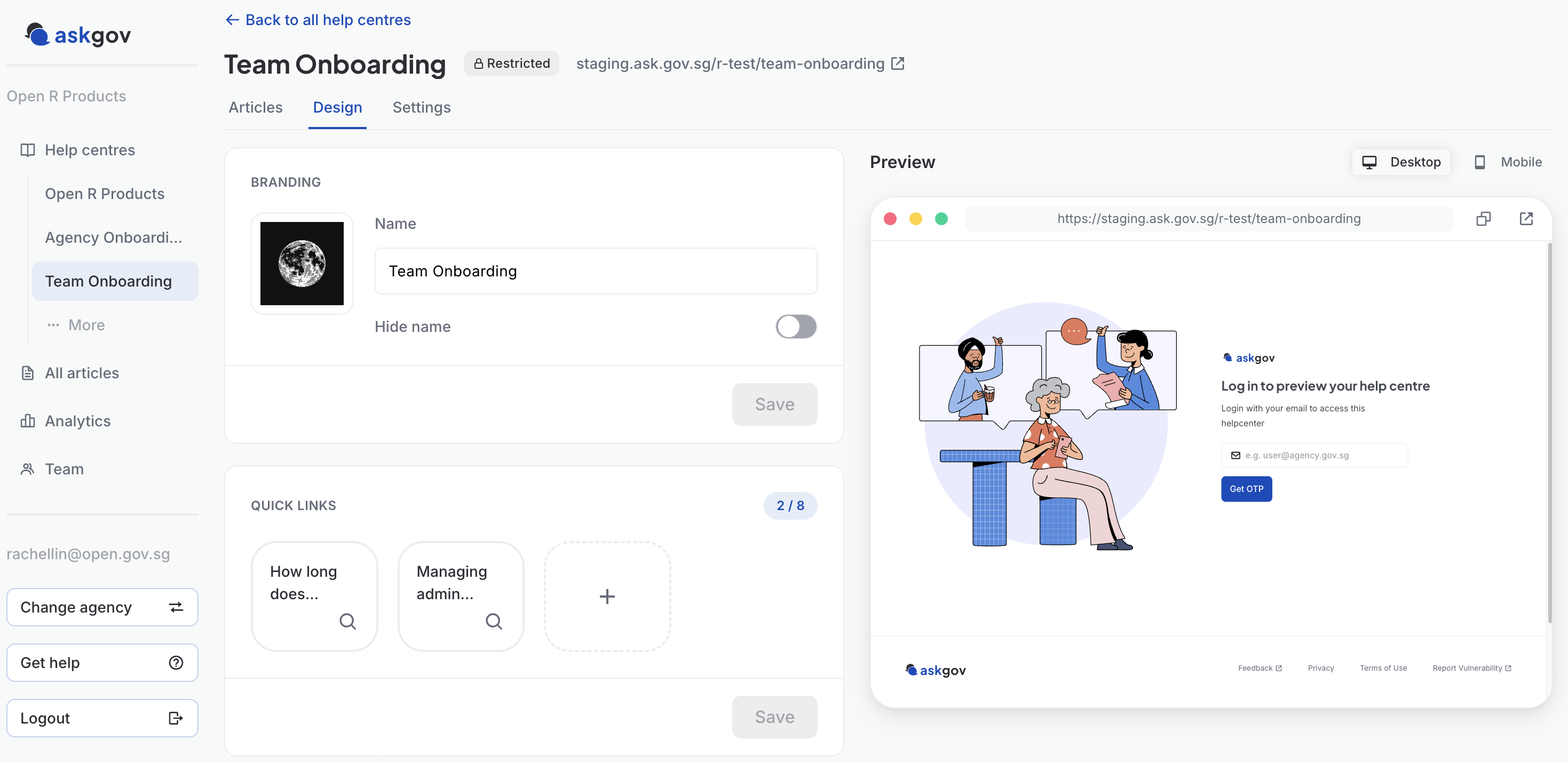
Each help centre has its own design settings. Select the centre you want to change before editing its branding, quick links or pinned articles. Changing them in one centre does not change another centre’s design.
Step 1: Open Design for selected help centre
Log in to preview the help centre if it's restricted
In Studio, open Help centres, select the centre and open Design.
Step 2: Set the branding
Upload a logo and edit the display name under Branding.
Use Hide name if you want to show the logo without the name.
Check the preview and save the branding changes.
Step 3: Add quick links
Under Quick links, add shortcuts to useful articles or web pages. Choose clear labels and check each destination.
You can have up to eight quick links per centre. Arrange them in the order you want, then save the changes.
Step 4: Choose pinned articles
Under Pinned articles, select Pin an article and choose a Live article already assigned to the centre.
Arrange the pinned articles in the intended order, then save. Drafts and articles outside the centre cannot be pinned.
Step 5: Preview then publish
Use the desktop and mobile previews, then open the live help centre and check the saved design, links and pin order.