You can now upload images directly in your articles from the AskGov Studio. Previously, you had to upload images to go.gov.sg first and paste the link into your article.
How to add an image:
Go to Articles on the Admin Studio
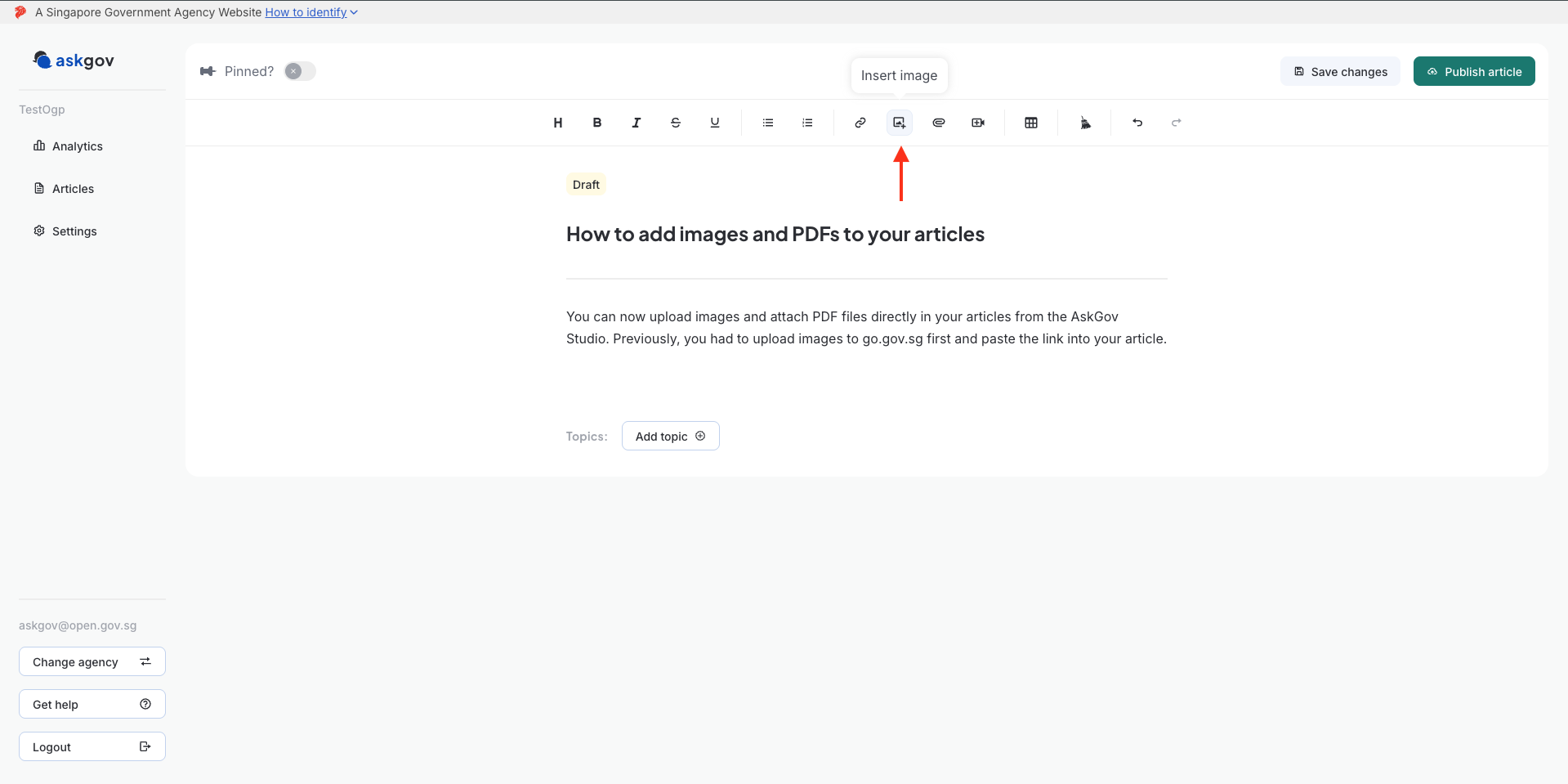
In the article editor, click "Insert image" in the toolbar.
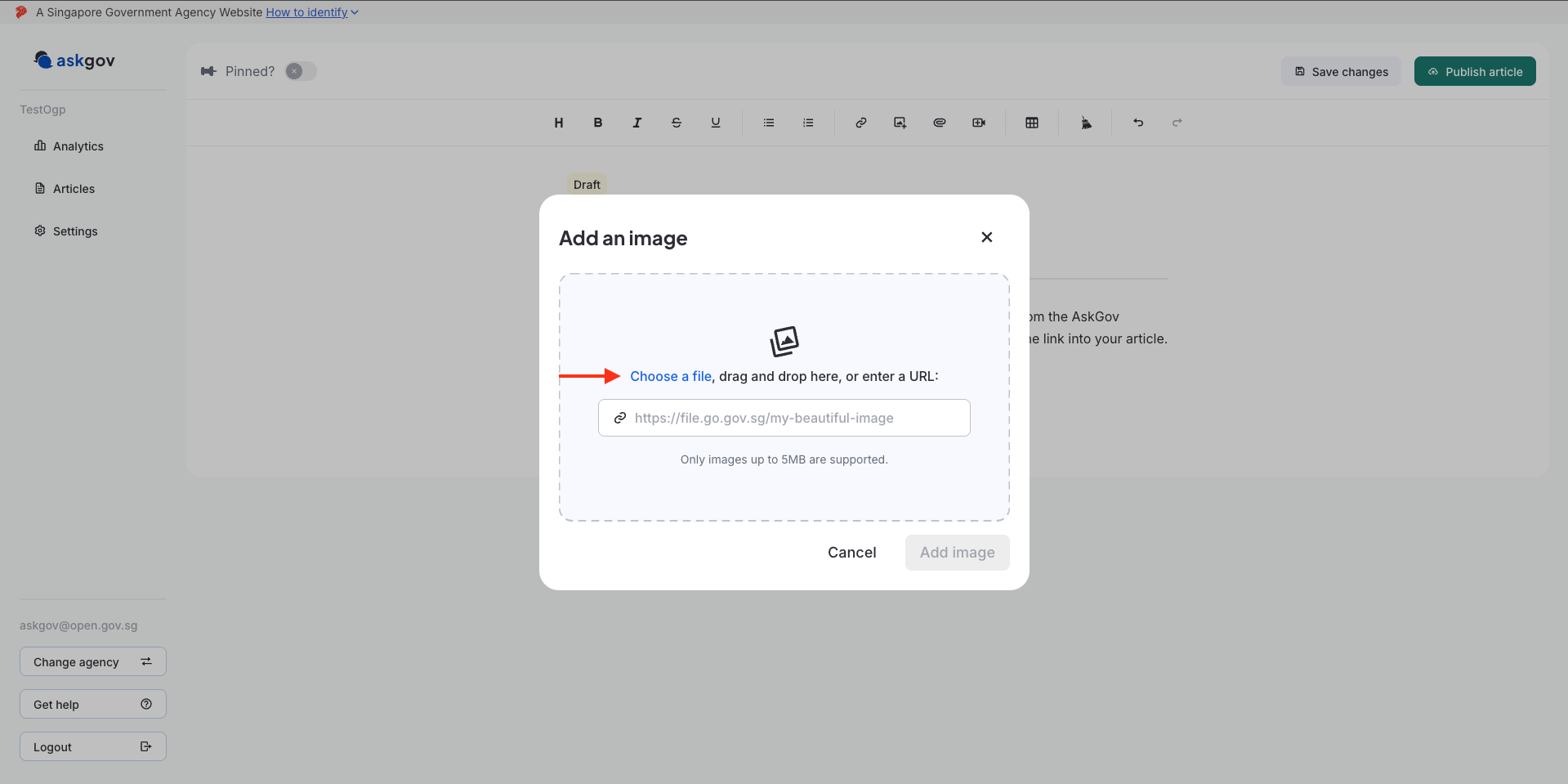
Upload your image
Click "Choose a file", or drag your image into the window. You can upload PNG, JPEG, GIF or WebP images up to 5 MB.
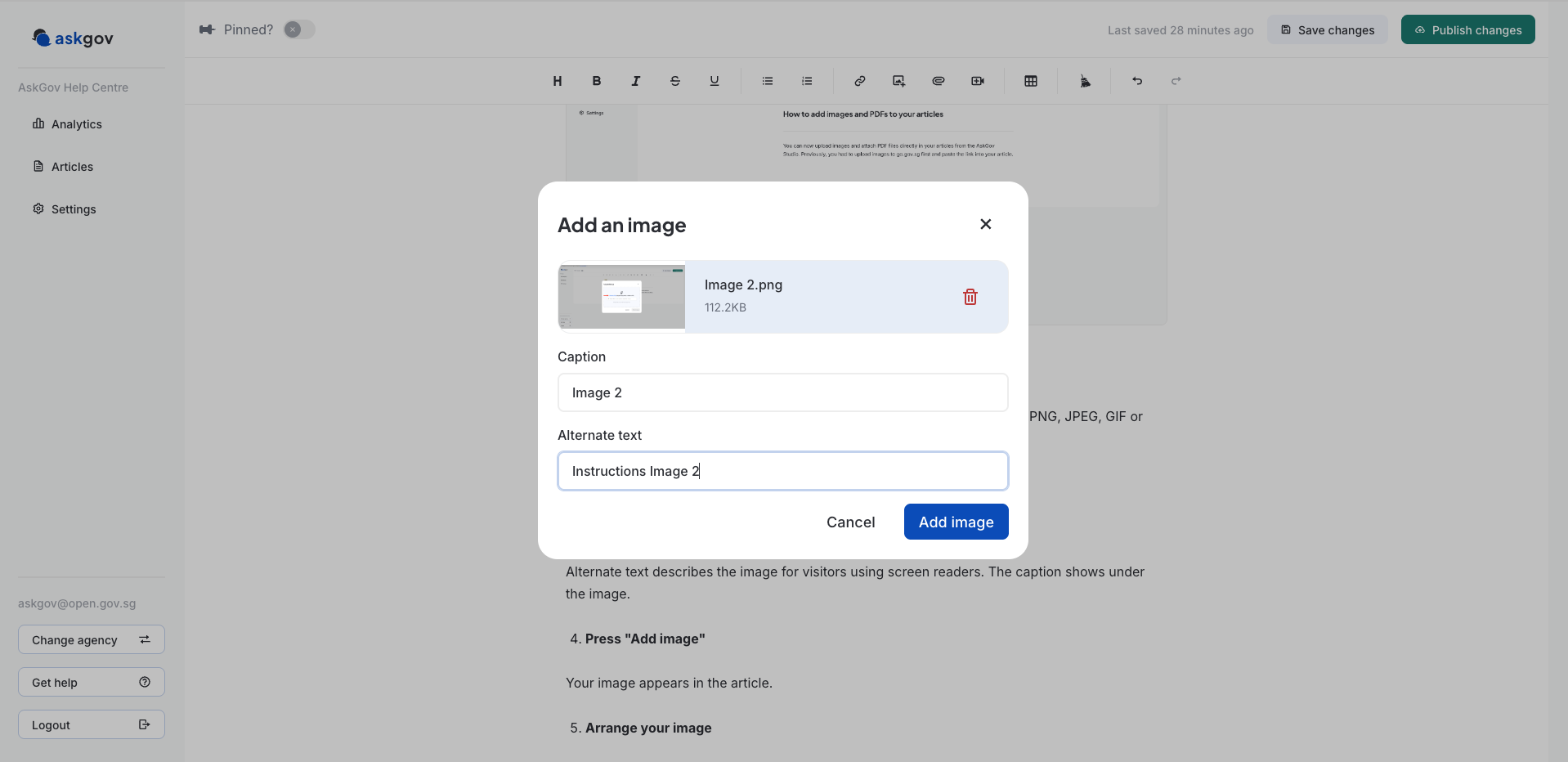
Add alternate text and a caption (optional)
Alternate text describes the image for visitors using screen readers. The caption shows under the image.
Press "Add image"
Your image appears in the article.
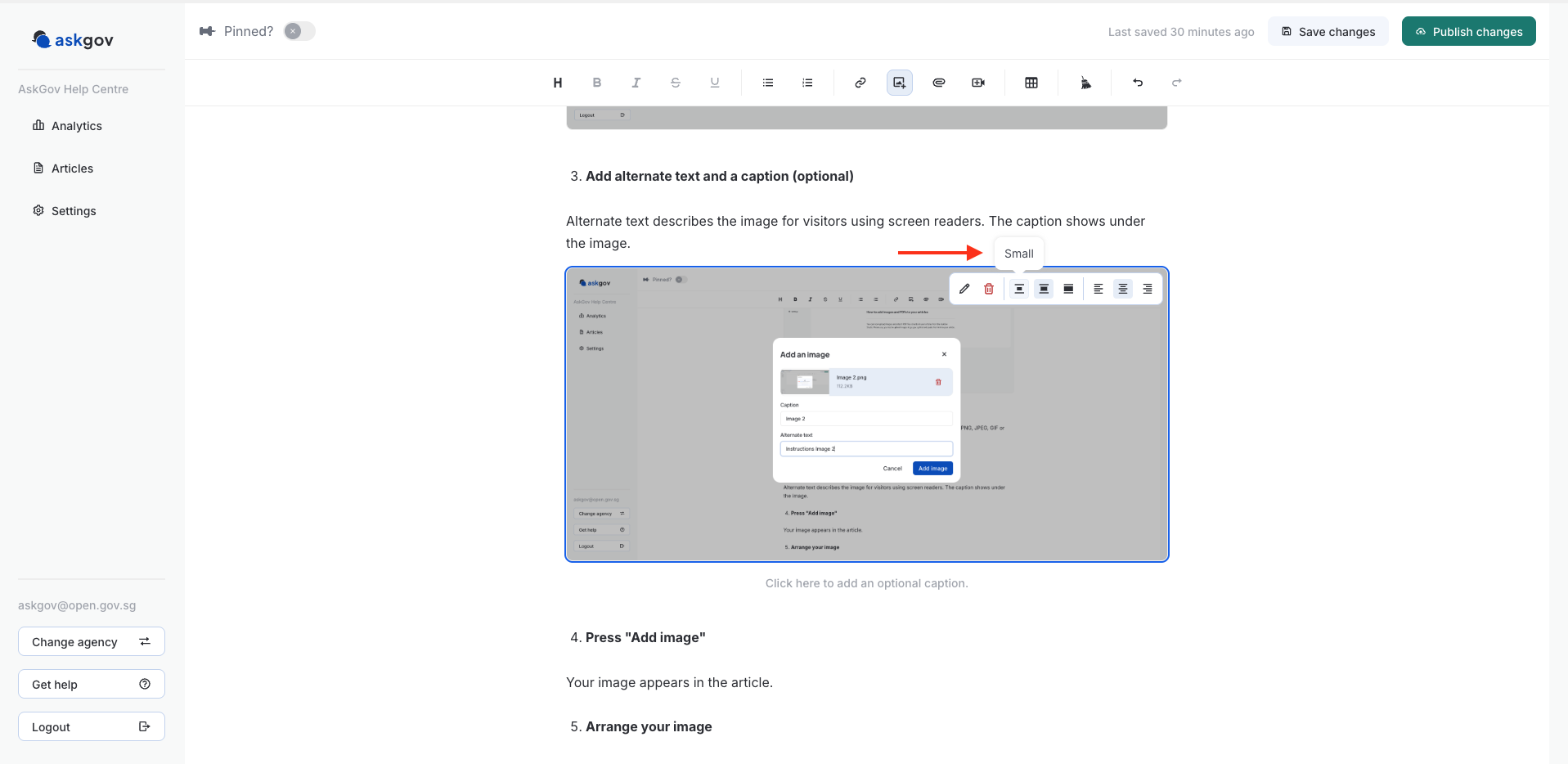
Resize your image
Click on the image and choose one of the resize options on the image toolbar. You can select "small", "original", or "fill page".
Keep in mind: Remember to save your article for your changes to take effect.