
help
1
A Singapore Government Agency Website
Back to home
Updated by HELP
How to bulk edit articles?
Bulk edit lets you make the same change to several articles at once, instead of opening and updating them one by one. This is useful when you need to publish, unpublish, or remove a large batch of articles in one go.
With bulk edit, you can:
Publish multiple articles at once
Unpublish multiple articles at once
Assign a topic to multiple articles at once
Delete multiple articles at once
⚠️ Note on bulk assigning a topic: This currently replaces each selected article's existing topic(s) — it does not add the new topic alongside the old ones. If an article already has a topic assigned, bulk-assigning a new topic will unassign the old one.
Step 1: Go to the articles table in Admin Studio.
Step 2: Select the checkbox next to each article you want to edit.
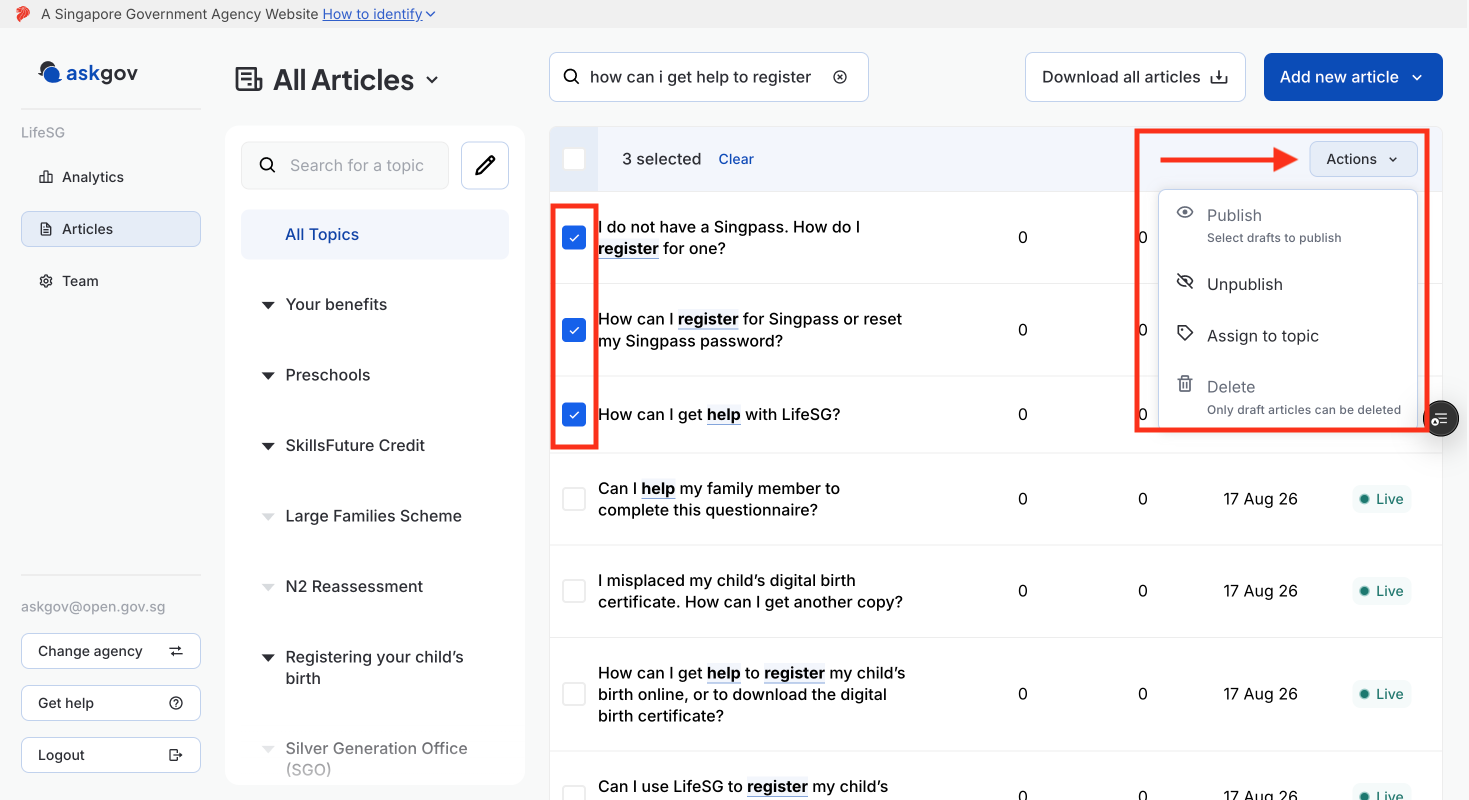
Step 3: Once you've selected your articles, a bulk actions bar/menu will appear.
Step 4: Choose the action you want to apply:
To publish: Select Publish. This only applies to drafts
To unpublish: Select Unpublish.
To assign a topic: Select Assign topic, then choose the topic from the list.
To delete: Select Delete, then confirm the deletion. You can only delete draft articles
Step 5: The change is applied immediately to all selected articles and reflected on your live help centre right away.
If I bulk-assign a topic to an article that already has one, what happens to the old topic?
The old topic is unassigned and replaced with the newly selected topic. Bulk assign does not add a topic alongside existing ones.
Is there a limit to how many articles I can select at once?
You can edit 100 articles at a time
Related questions
Need more help?
Describe your issues to us.