How do I view my Health Plan and the tasks that my doctor has recommended me to do in the HealthHub app?
Updated by HEALTHIERSG
Your Health Plan can be viewed in the HealthHub app after your discussion with your enrolled Healthier SG clinic.
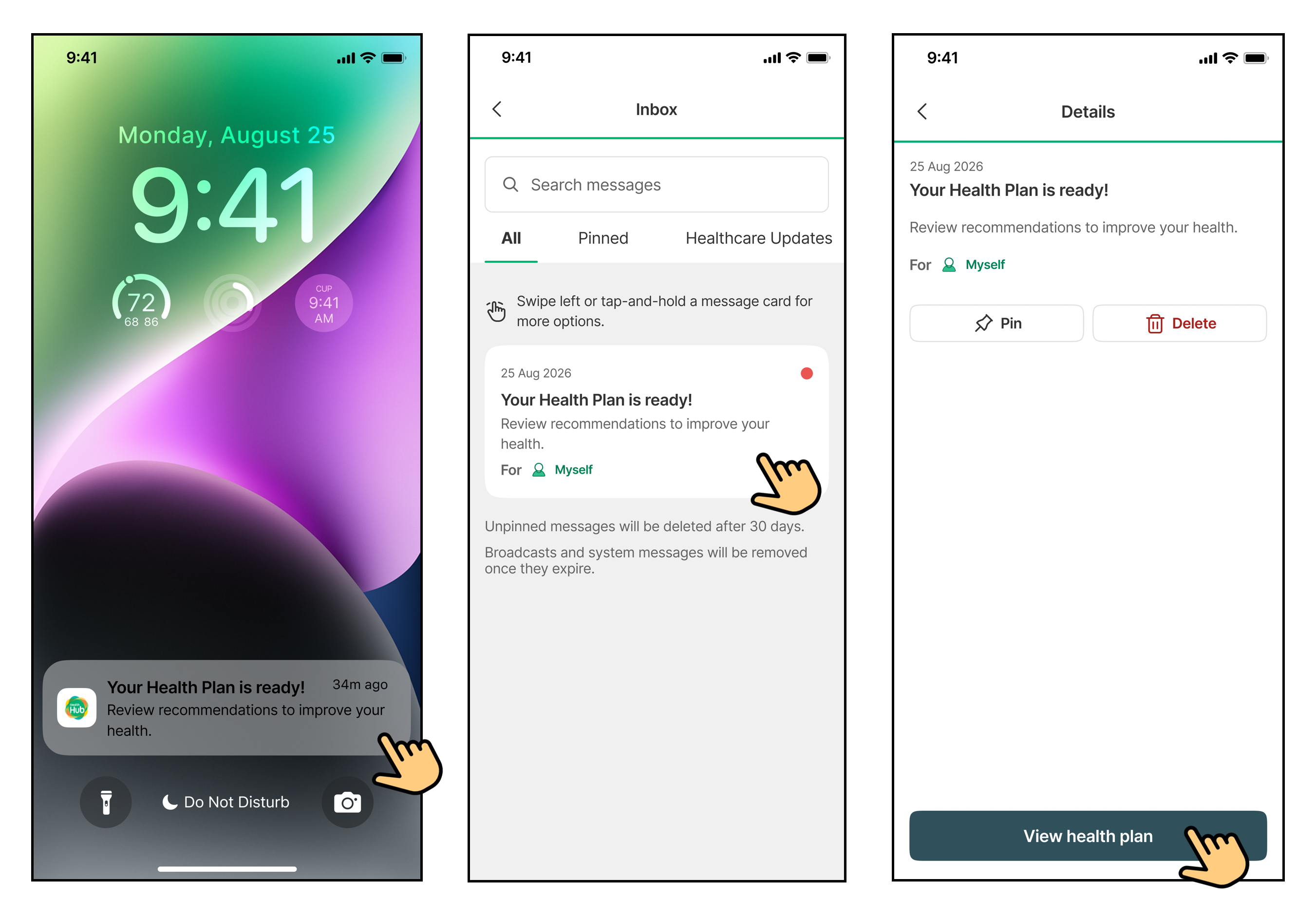
When your Health Plan is ready, you will receive a notification in your HealthHub app if you have enabled push notifications.
To view your Health Plan summary via push notification:
1. Tap on the push notification and log in to HealthHub app via Singpass and you will be directed to your Inbox
2. Tap on the task card to view the full message
3. On the next page, tap on View Health Plan button at the bottom of the screen
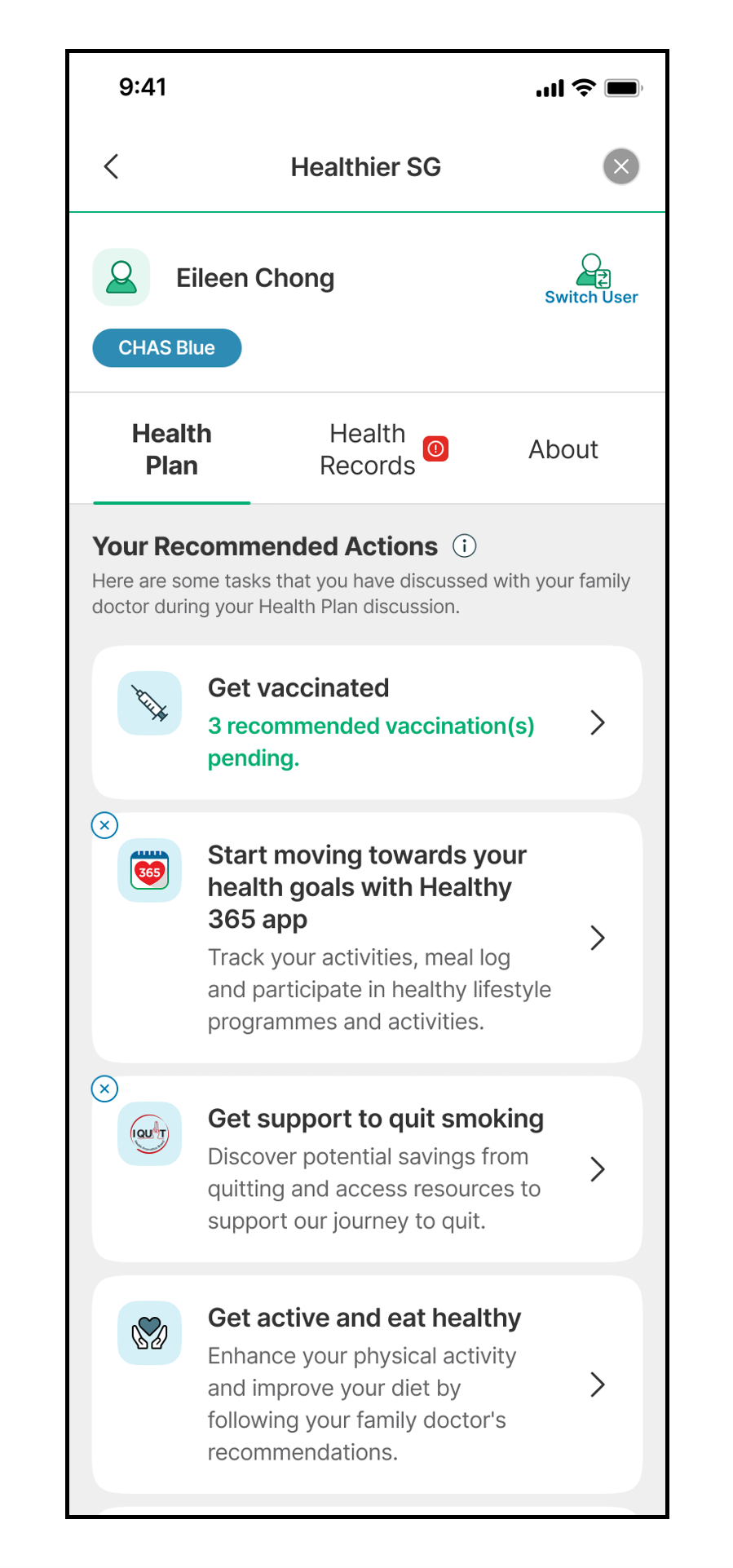
4. You can now view your Health Plan main page
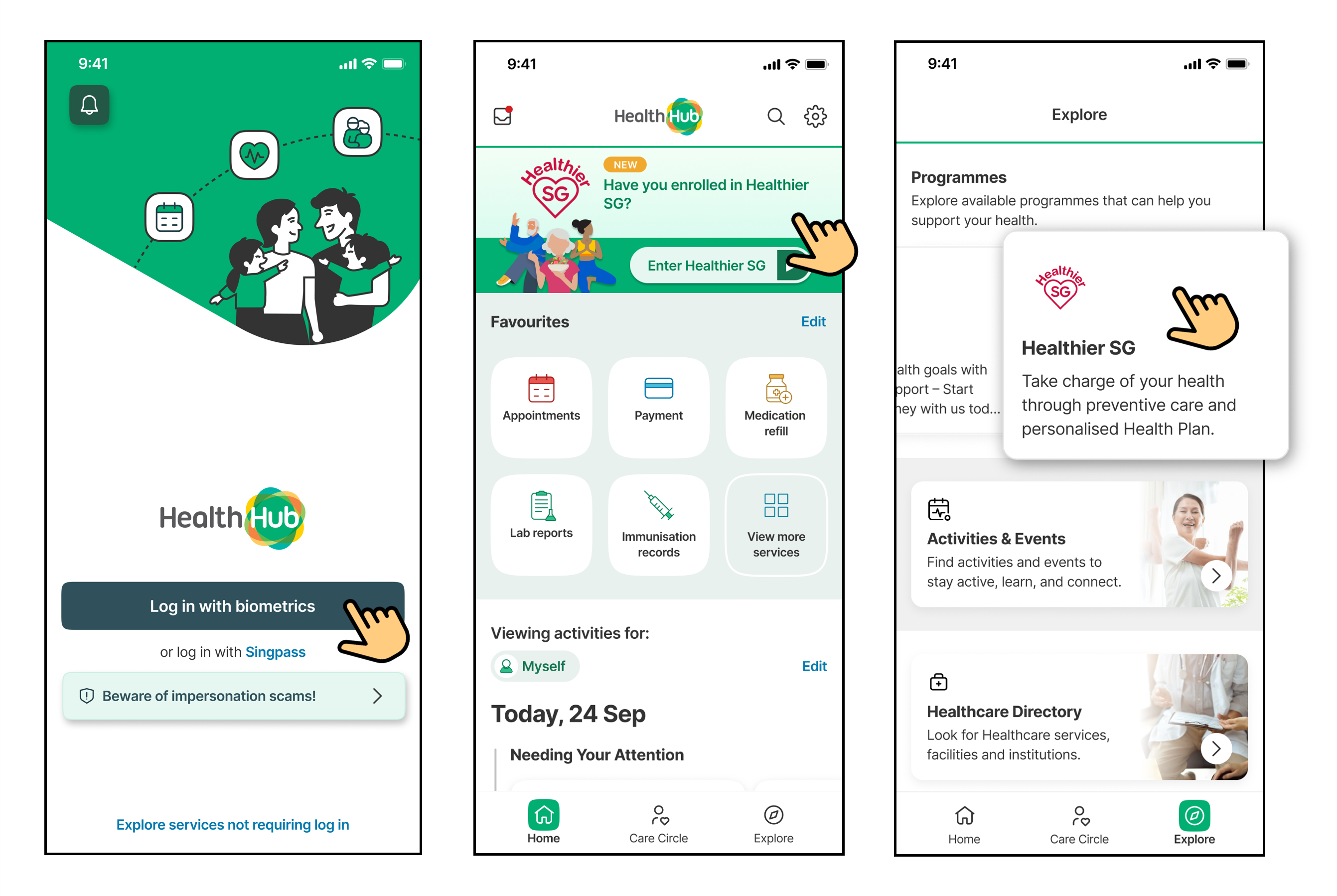
Alternatively, you may follow these steps to navigate to your Health Plan:
5. Log in to HealthHub app using Singpass
6. Tap on Healthier SG Banner on the Homepage or go to the Explore page and under the Programmes section, swipe left to locate and tap on Healthier SG
7. You can now view your Health Plan main page
In your Health Plan main page, you can view the tasks that you have discussed with your Healthier SG doctor based on your medical history, health needs and concerns. You could be recommended to:
Go for Healthier SG screening tests and vaccinations
Review your lifestyle actions such as diet and exercise
Go for health lifestyle programmes and activities
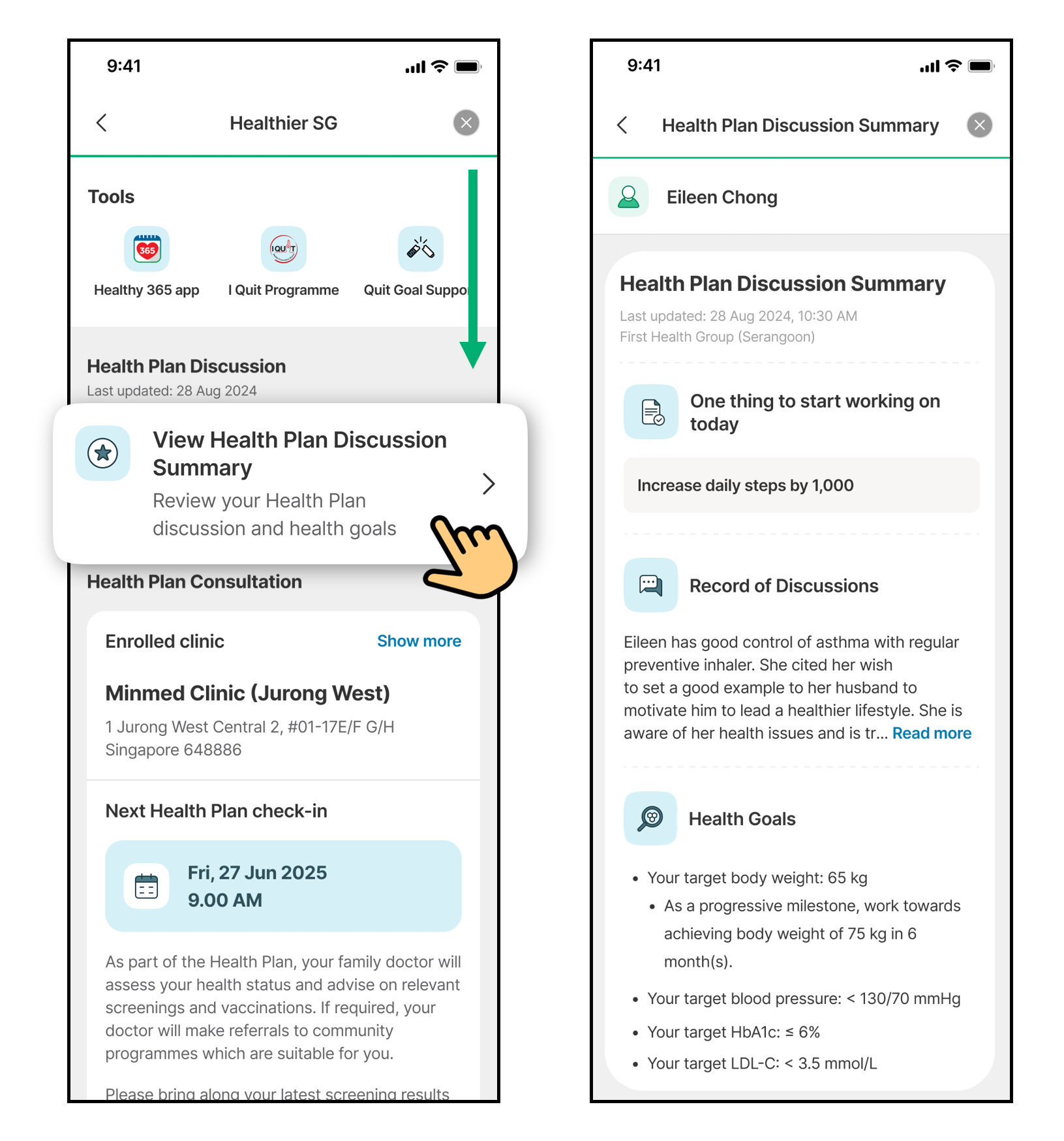
To see a comprehensive record of your discussion with your Healthier SG doctor scroll past your tasks to the Health Plan Discussion section and tap on View Health Plan Discussion Summary:
If you do not have a smartphone to access the HealthHub app, you may request your clinic to print out a copy of your Health Plan for you.